Header and search results assets: a new step in App Store optimization
· 9 min read
On October 5, App Store Connect grew a new tab. Open an app's version page, scroll to Product Page Information, and next to the familiar App Previews and Screenshots there is now one called Header and Search Results. Apple put a blue banner above it titled "New Ways to Market Apps".
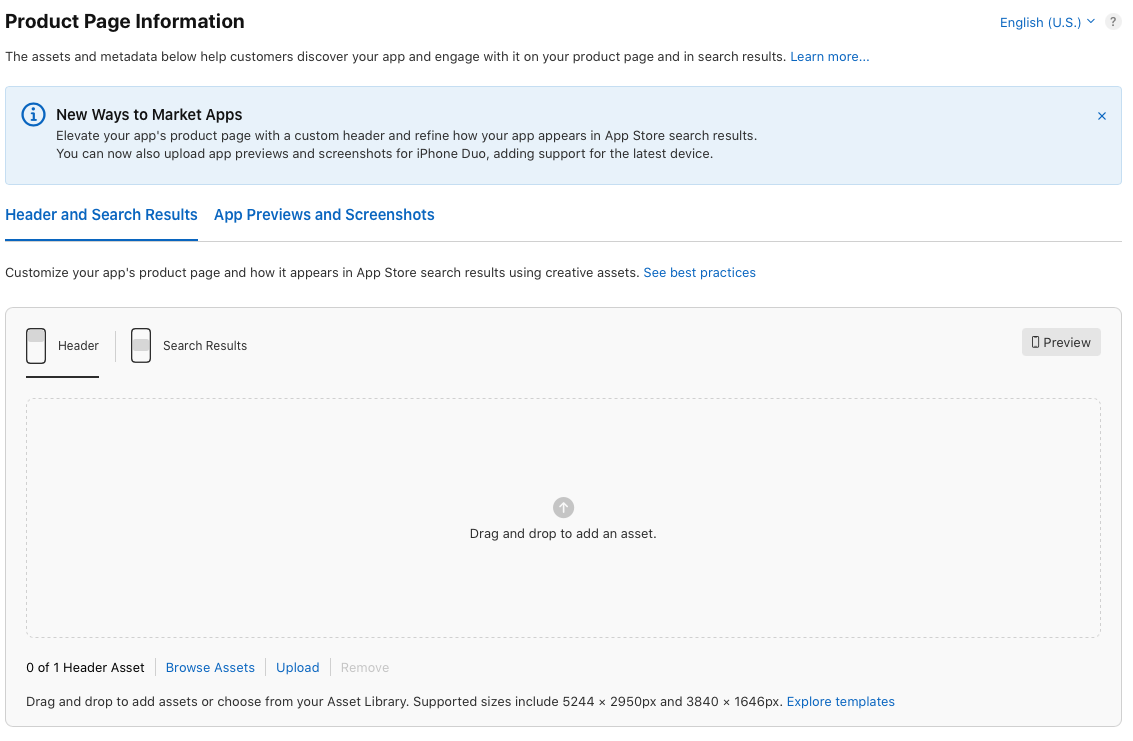
ASO has always been two jobs. Getting found is mostly words: the app name, the subtitle, the keyword field. Getting picked once you are found is mostly pictures, meaning the icon, the screenshots and the preview videos. The new tab adds two slots to that second job, and unlike screenshots, they do not have to show the app in use.
The short version. The product page header is a wide image or video at the top of your product page. The search results asset takes the place of your screenshots in App Store search. Both are optional, both appear only for people on iOS 27 or iPadOS 27 and later, and both can be approved ahead of time in the new Asset Library without shipping a build. Apple pitches them for your brand, seasonal offers and new content. Nobody has published conversion data on them yet.
Two slots with different jobs
The header sits at the top of the product page, which people only reach after tapping your app somewhere. Apple's advice is to build it around one clear idea for a first-time visitor. It is also the slot for things screenshots handle badly, like a brand, a season or a new piece of content. Someone who has tapped through is already curious, and the header has to give them a reason to keep scrolling.
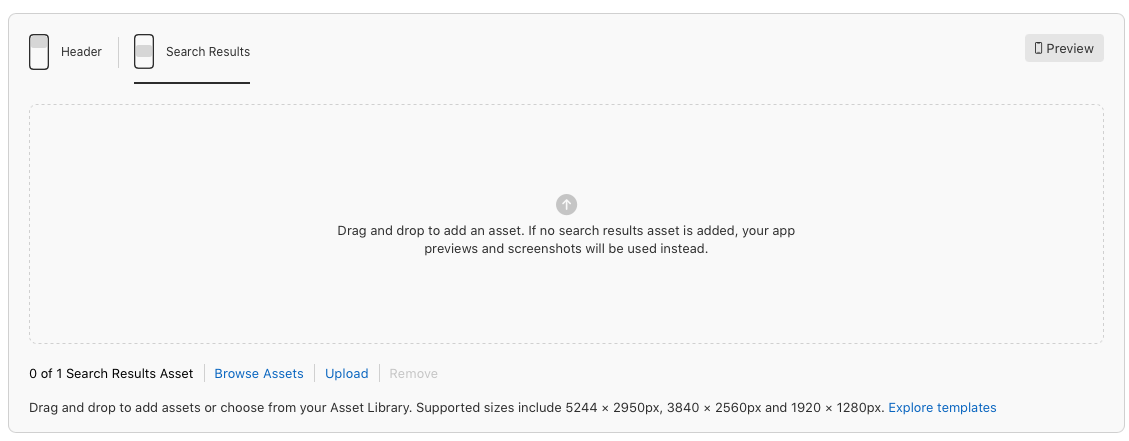
The search results asset appears in the list people get after typing a query in the App Store, and for games in the Apple Games app too. Here Apple's guidance points the other way: make the app's purpose obvious at a glance, and show the firsthand experience, meaning the interface, the content or the gameplay. The person scrolling has not picked you yet. They typed a word that says what they want, and they are comparing you with the apps above and below.
So the header sells the brand and the search asset sells the purpose. If you add nothing, search keeps showing what it shows today. The empty slot in App Store Connect says your app previews and screenshots are used instead, and Apple's best practices page adds your In-App Events to that list.
The specifications
| Placement | Image | Video |
|---|---|---|
| Product page header | 21:9 at 3840 × 1646 (JPEG or PNG), or 16:9 at 5244 × 2950 (PNG only) | 21:9 at 3840 × 1646, 5 to 30 seconds, 30 or 60 fps, .mov, .m4v or .mp4 |
| Search results | 3:2 from 1920 × 1280 up to 3840 × 2560 (JPEG or PNG), or 16:9 at 5244 × 2950 (PNG only) | 3:2 from 1920 × 1280 up to 3840 × 2560, 5 to 30 seconds, 30 or 60 fps, .mov, .m4v or .mp4 |
Some details on Apple's spec page change how you design. Images cannot carry transparency. Videos loop and start muted, and while people can turn the sound on from your product page, a video in search results stays silent. Then there is the 16:9 PNG at 5244 × 2950, the only size both slots accept. Apple calls it a universal creative asset: upload one, select "Use header asset in search results", and a single image covers both placements.
Going universal saves a design and keeps your listing consistent, which helps a small team. It also asks one picture to sell the brand and the purpose at once. That works when the name already says what the app does, a weather app or a scanner. When it does not, design the search asset separately and keep the header for the brand.
What Apple will not let you put on them
The rules come from App Review Guideline 2.3 (accurate metadata) and Apple's advertising policies. Apple's asset best practices page spells them out:
- No specific prices or discounts, even during a sale.
- No website URLs and no copyright symbols.
- No awards or recognition the app has not received. Apple's own labels are off limits even when you earned them: Editor's Choice, App of the Day, Game of the Day, Apple Design Award.
- No logos of, or references to, other platforms or marketplaces. A Google Play badge or an "also on Android" line will not pass.
- Every asset has to meet a 4+ age rating, even if the app itself is rated higher.
- Games can show action, but no gore and no weapon pointed at a person or at the viewer.
The 4+ rule is the one I expect to catch people out. A horror game or a dating app rated 18+ still needs artwork a child could see, because search is a place where a child might see it.
Screenshots work under a stricter rule. Guideline 2.3.3 says App Review approves a set only when more than half of the screenshots for each device show the app in use, which is why most screenshot sets are interface with a caption on top. The creative assets have no such quota. Apple's announcement in August said they let you "go beyond in-use visuals". The search asset leans back toward the product, since Apple asks for the firsthand experience there, but that can be content or gameplay rather than a screen capture.
The Asset Library changes the calendar
Until now, store visuals traveled with an app version. You changed the screenshots when you shipped a build, and they went through review together. That route still exists for the new assets: add them on the version page, submit, and they go live with the release.
The other route is new. The Asset Library is a section of App Store Connect that accepts images and videos as a standalone submission. Apple reviews them against your app's latest version, with no new build and no need to say where you plan to use them. Approved assets stay in the library until you pick them for the header, the search results, a custom product page or a product page optimization test. Your existing screenshots and previews are in there as well. Apple's own example is seasonal: get the artwork approved now, switch it on when the season starts. There is an API for teams that automate their listing.
For a small studio this is a real change. A Christmas header can be approved in November and switched on December 1 in an app whose code has not moved since September, and the store no longer has to wait for a release. Apple has published no review time for standalone assets, so leave a margin.
Where this fits in ASO
It is worth being precise about what these assets can do. Apple says its search results depend on text relevance (your title, subtitle, keywords and primary category) and on user behavior (downloads, ratings and reviews, and more). An image is neither, so uploading a header will not move you up for a keyword.
They work on conversion instead. In search, that means the share of people who see your result and tap it. On the product page, it means the share who arrive and download. App Store Connect analytics measures both, and both are what a better visual can change. Downloads count among Apple's ranking inputs, so a better conversion rate may feed back into search over time. By how much, nobody outside Apple can say.
That is why I call it a new step rather than a new trick. After the keywords and the screenshots, you now decide what your header says and what your search asset says, design each around one idea, and test them. Product page optimization can test header alternatives against your current page, and custom product pages can carry their own creative assets for an ad campaign or a specific audience.
Nobody has numbers yet
The assets have been live for three days as I write this. Nobody has published conversion data on them, and Adapty, which follows App Store changes closely, says the same. Treat any uplift figure you see this month as a guess.
What is known is short. The assets reach only people on iOS 27 and iPadOS 27 or later, a share that grows every week as devices update. And for now most apps in any given search still show screenshots, so an app with a designed search asset looks different from its neighbors. Different is not automatically better, and a weak header may do more harm than none. That gap closes as other developers catch up. I wrote about it, and about the other early move open this month with iPhone Duo, in The early-adopter bonus.
A checklist before you upload
- Write down, in one sentence each, the idea for the header and the purpose the search asset has to make obvious. Do it before anyone opens a design tool.
- Start from Apple's templates (Figma, Photoshop, Pixelmator and Sketch) on the asset best practices page rather than from the pixel sizes.
- Keep key elements inside the safe area and the focal point near the center, so a crop on another device does not cut it off.
- Keep any text to a short phrase, and translate it for every language your listing supports. The tab sits under the same language menu as your screenshots.
- Check the rules above: no price, URL, copyright symbol, borrowed award or other store, and nothing that fails a 4+ rating.
- For a video, pick a poster frame that works on its own, open with the strongest shot, avoid fast cuts, make the loop seamless, and assume nobody hears it.
- Open Preview in App Store Connect and look at both placements on iPhone and iPad, in both orientations, in Dark Mode, and on iPhone Duo.
- If no release is coming, submit through the Asset Library. For seasonal artwork, submit well before the date.
- Once it is live, compare tap-through and conversion with the weeks before, or run a product page optimization test to measure it properly.
Where I can help
I have built and shipped native iOS apps since 2008, and the store listing has always been part of shipping. If you want a second opinion on your header and search asset before you submit, or help deciding whether they are worth doing for your app at all, book a Monday slot.
Header and search results assets FAQ
Are the header and search results assets required?
No. Both are optional. Without a search results asset, the App Store keeps showing your In-App Events, app previews and screenshots in search.
Who sees them?
People on iOS 27 or iPadOS 27 and later. Anyone on an earlier version sees your listing as before.
Do I need a new app version to add them?
No. You can submit them on their own through the Asset Library, where Apple reviews them against your app's latest version. You can also attach them to a version, and they go live when it is released.
Can one image be used for both the header and search results?
Yes. A 16:9 PNG at 5244 × 2950 pixels is a universal creative asset. Upload it as the header and select "Use header asset in search results".
Can I use a video?
Yes. 21:9 for the header and 3:2 for search results, 5 to 30 seconds, at 30 or 60 fps. Videos loop and start muted. On the product page people can unmute them, in search results they cannot.
Do these assets help keyword ranking?
Not directly. Apple ranks search results on text relevance and user behavior. The assets can raise the share of people who tap and download, and downloads are part of user behavior, but nobody outside Apple can say how much that moves rankings.
Can I show a price or a sale on them?
No. Apple's asset rules exclude specific prices and discounts, website URLs, copyright symbols, other platforms, and Apple's own recognitions such as Editor's Choice.
Sources
- Apple Developer News: Showcase your apps with new assets on the App Store (October 5, 2026)
- Apple Developer News: Get ready for new creative assets on the App Store (August 5, 2026)
- Apple Developer: App Store asset best practices and resources
- App Store Connect Help: Creative assets specifications
- App Store Connect Help: Manage your App Store assets
- App Review: Guideline 2.3.3, Screenshots
- Apple Developer: What's new on the App Store
- Apple Developer: App Store search
- Adapty: App Store Asset Library is live